App lock and Touch ID
IndexOne can ask for Touch ID or your Mac password before it opens, and lock itself when you step away or share your screen. You can also protect a single Workspace, folder, note or meeting so that its contents stay encrypted until you unlock it.
Checked against IndexOne 3.19.0, released November 14, 2026.
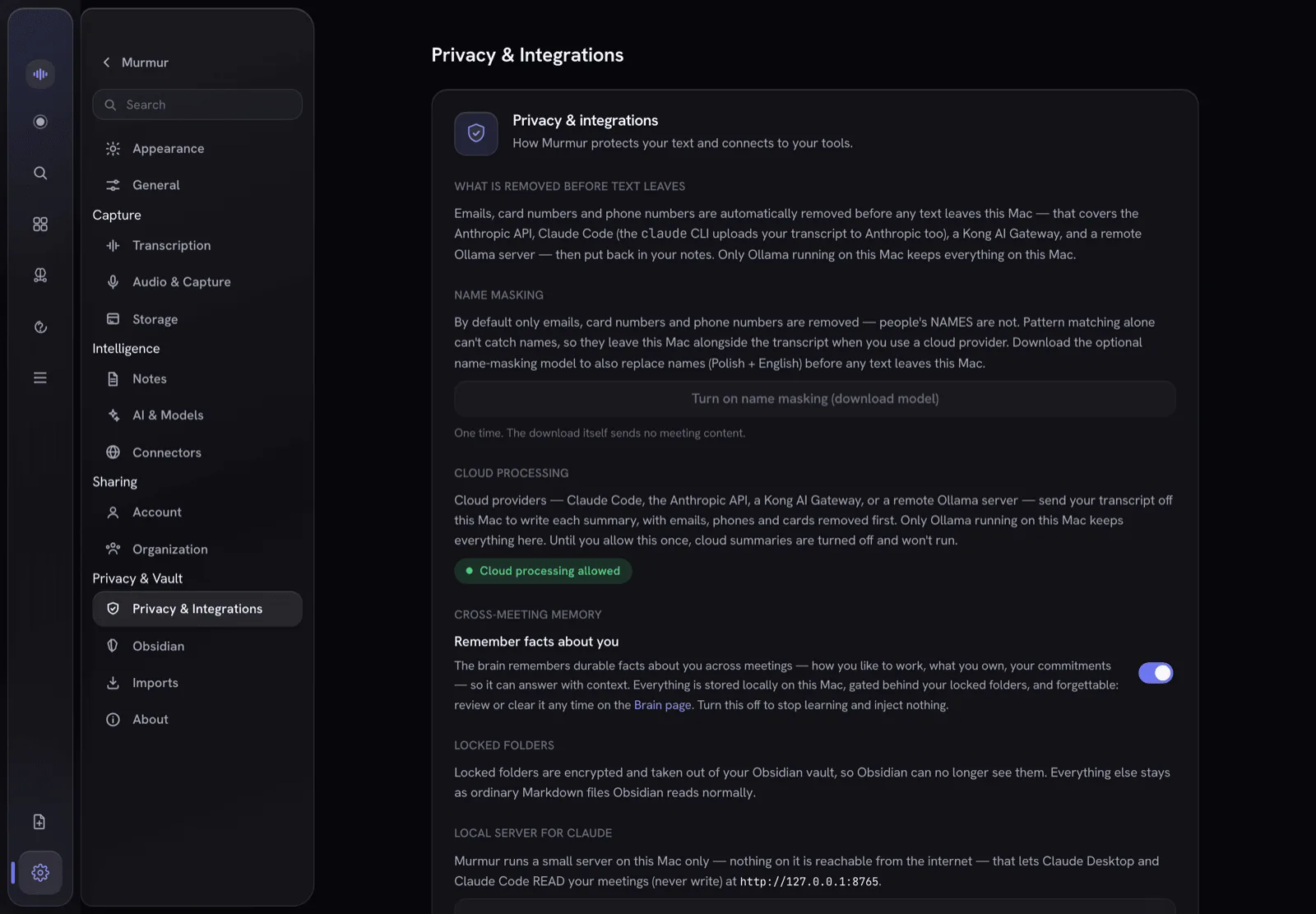
Lock the whole app
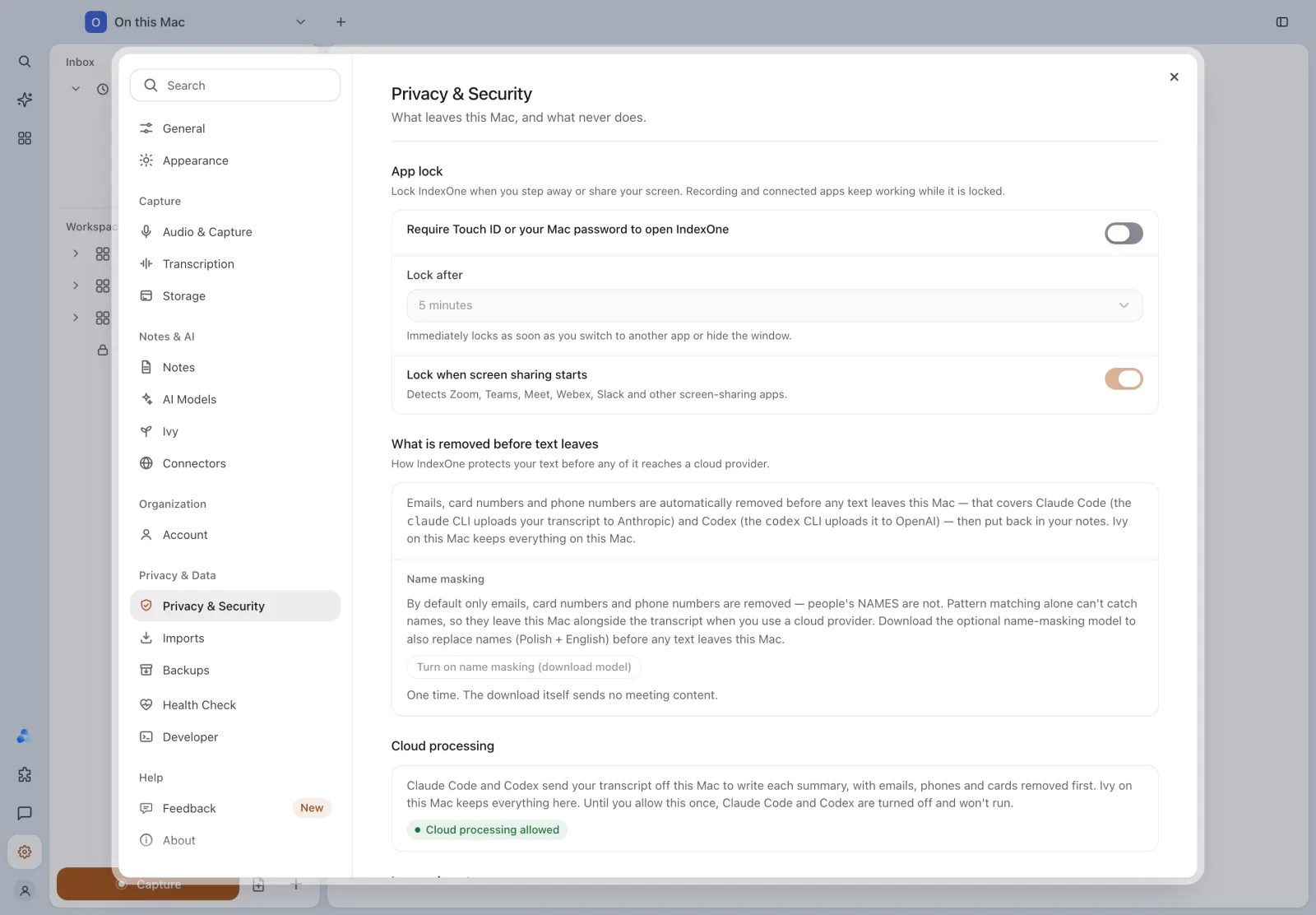
Open Settings › Privacy & Security › App lock.
- Require Touch ID or your Mac password to open IndexOne turns the lock on. IndexOne asks for Touch ID or your password before it saves this, so you cannot lock yourself out of an app you cannot open.
- Lock after sets when it locks: Immediately, or after 1 minute, 5 minutes (the default), 15 minutes or 1 hour without activity. Immediately locks as soon as you switch to another app or hide the window.
- Lock when screen sharing starts locks IndexOne when it detects Zoom, Teams, Meet, Webex, Slack or another screen-sharing app. It is on by default.
- Lock now appears once the lock is on and locks the app at once.
Turning the lock off, choosing a longer delay or turning off Lock when screen sharing starts also asks for Touch ID or your password.
With the lock on, IndexOne starts locked. A locked app shows only "IndexOne is locked". Choose Unlock, then use Touch ID or your Mac password.
Locking the app also locks every protected folder, note and meeting you had unlocked.
Protect a Workspace, folder, note or meeting
In On this Mac you can protect a single item:
- a Workspace or folder: choose Protect… in its menu in the sidebar;
- a note or meeting: choose Protect… in its menu.
The Protect side panel opens. Turn on Require Touch ID or your Mac password. The item, or everything inside a Workspace or folder, is then encrypted and hidden from search, Ivy and connected apps until you unlock it.
Lock again after inactivity sets how long an unlocked item stays open without activity: Never, 1 minute, 5 minutes, 15 minutes or 1 hour. Lock now locks it straight away.
A few rules:
- A note that belongs to a meeting is protected through its meeting.
- A note or meeting inside a locked folder is already protected by that folder's lock.
- To remove protection, open Protection… and turn the switch off. IndexOne asks you to confirm, and asks for Touch ID or your password. Everything is decrypted and visible again.
- A protected item cannot be deleted or moved until you remove its protection.
Protection is available in On this Mac. Personal and organization spaces live in your IndexOne account and use the access rules of that account instead. See Organizations.
Unlock and lock again
Select a locked item and choose Unlock, then use Touch ID or your Mac password. An item stays unlocked for this session only.
The sidebar shows how many protected items are unlocked, with Lock all. Locking a folder also locks everything inside it.
Unlocked folders and items also lock again by themselves when IndexOne detects that screen sharing has started, even if App lock is off.
Not the same as a note's Lock
The editor's lock that makes a note read-only is a different thing. It does not encrypt anything. To encrypt a note, protect it as described above.
For how protection works underneath, see The lock model.
Something missing or out of date? Tell us in GitHub Discussions, or send a report from IndexOne with Send feedback.