Your first recording
This page takes you from the first launch to a finished note. It takes a few minutes, most of it the one-time speech model download.
Checked against IndexOne 3.19.0, released November 14, 2026.
First launch
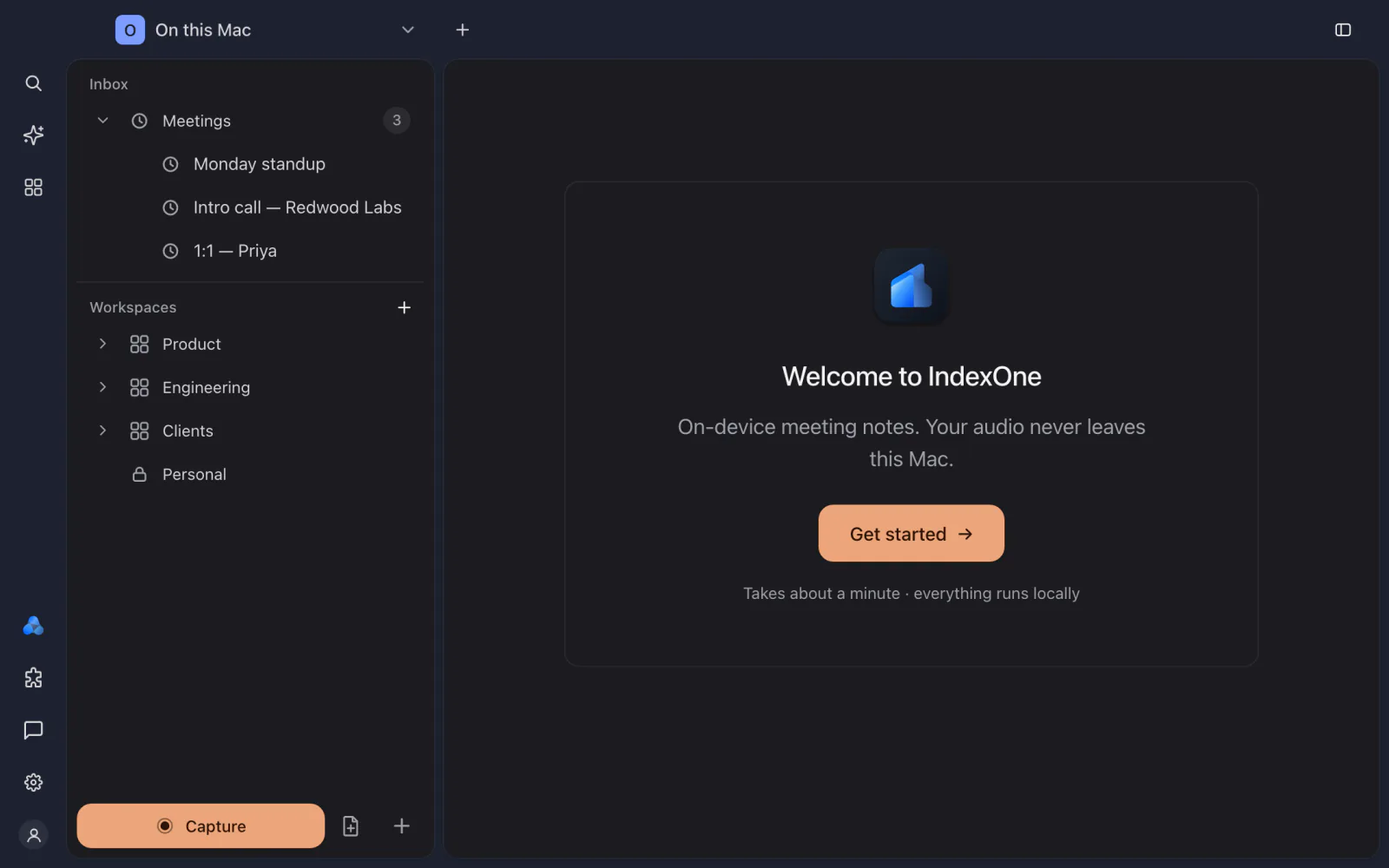
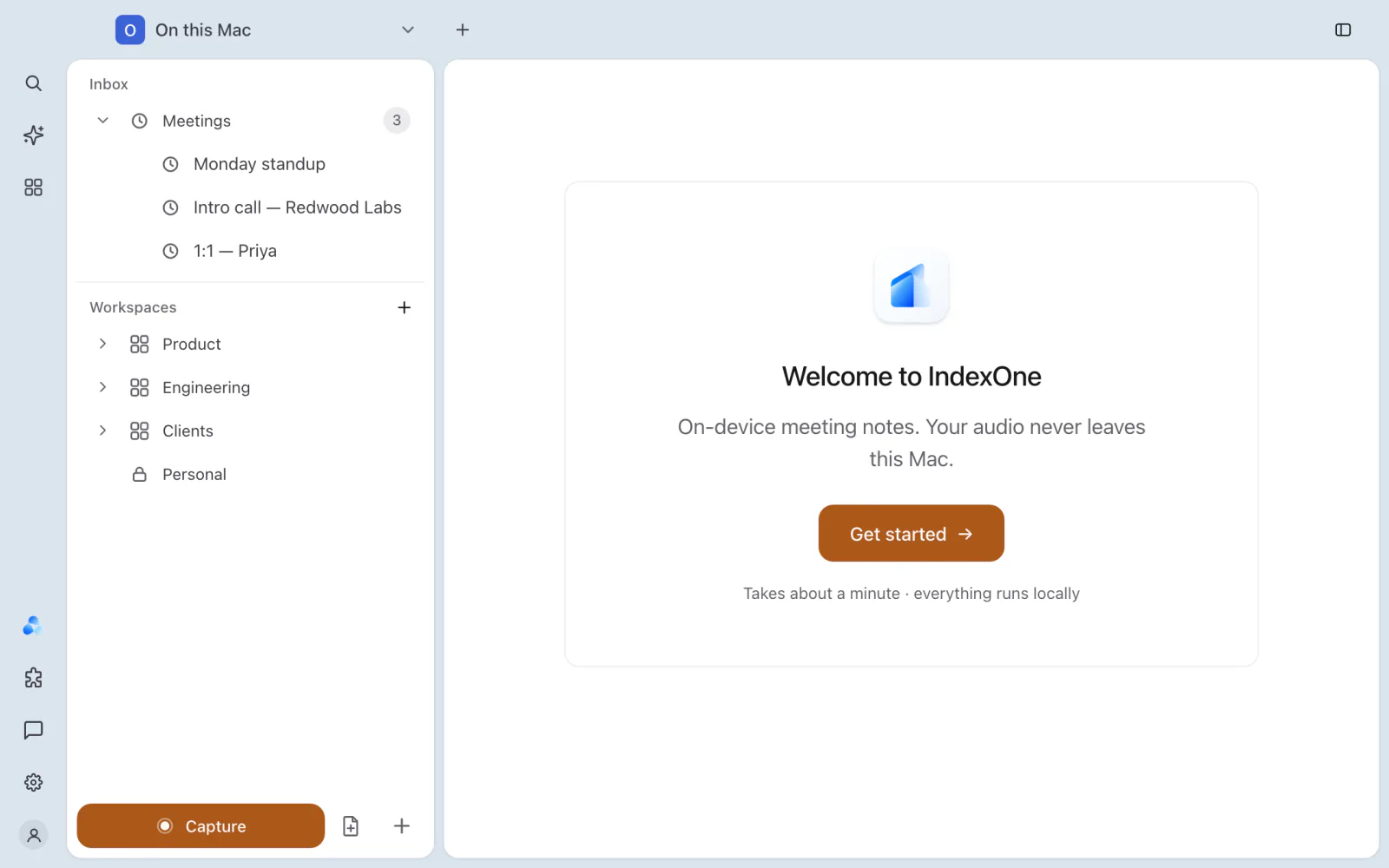
The first launch opens a short setup. Choose Get started, then:
- Choose your transcription model. Whisper turns speech into text on your Mac. Pick the language of your meetings (or Auto-detect) and a quality, then Download model. The download happens once. A small extra model for live captions comes along with it.
- AI on this Mac. Choose who writes your notes and answers in On this Mac: Ivy on this Mac (made on this Mac, nothing goes to an outside AI), Claude Code or Codex. With Claude Code or Codex, transcription still happens on your Mac, and the text is redacted before it goes out. You can change this later in Settings › AI Models.
- Enable Ivy. Two small optional models let Ivy remember facts about you and search your notes by meaning, all on your Mac. You can skip this and do it later from the Ivy page.
- You're all set. The last card lists the shortcuts below. Choose Start recording to go to the Record screen.
Before you record
The first time you start a recording, IndexOne asks you to let people know: everyone in the meeting must know it is being recorded. Tell them every time you record. IndexOne shows this reminder only once.
To capture the other side of a Zoom, Meet or Teams call, IndexOne records your Mac's system audio. macOS asks for the Screen & System Audio Recording permission the first time. Use headphones, so the other participants' voices don't echo into your microphone.
The Record screen
Open it with Capture at the bottom of the sidebar, or press ⌘R to start and stop recording.
Above Start recording, the Saves to row shows three things on one line:
- Where the recording is saved. On this Mac, Personal or a space in one of your organizations. Click it to choose. Signed out, only On this Mac is offered. See Organizations and Personal.
- A processing badge. It says who makes the transcript and the note, for example Ivy on this Mac or Ivy on the web. Hover over it for details.
- The time left. On this Mac shows when the recording stops by itself, for example "stops at 4:00:00": a recording runs for at most four hours. A place in your account also shows how much storage is free.
If a meeting app is running, the Record screen may offer to start recording for you.
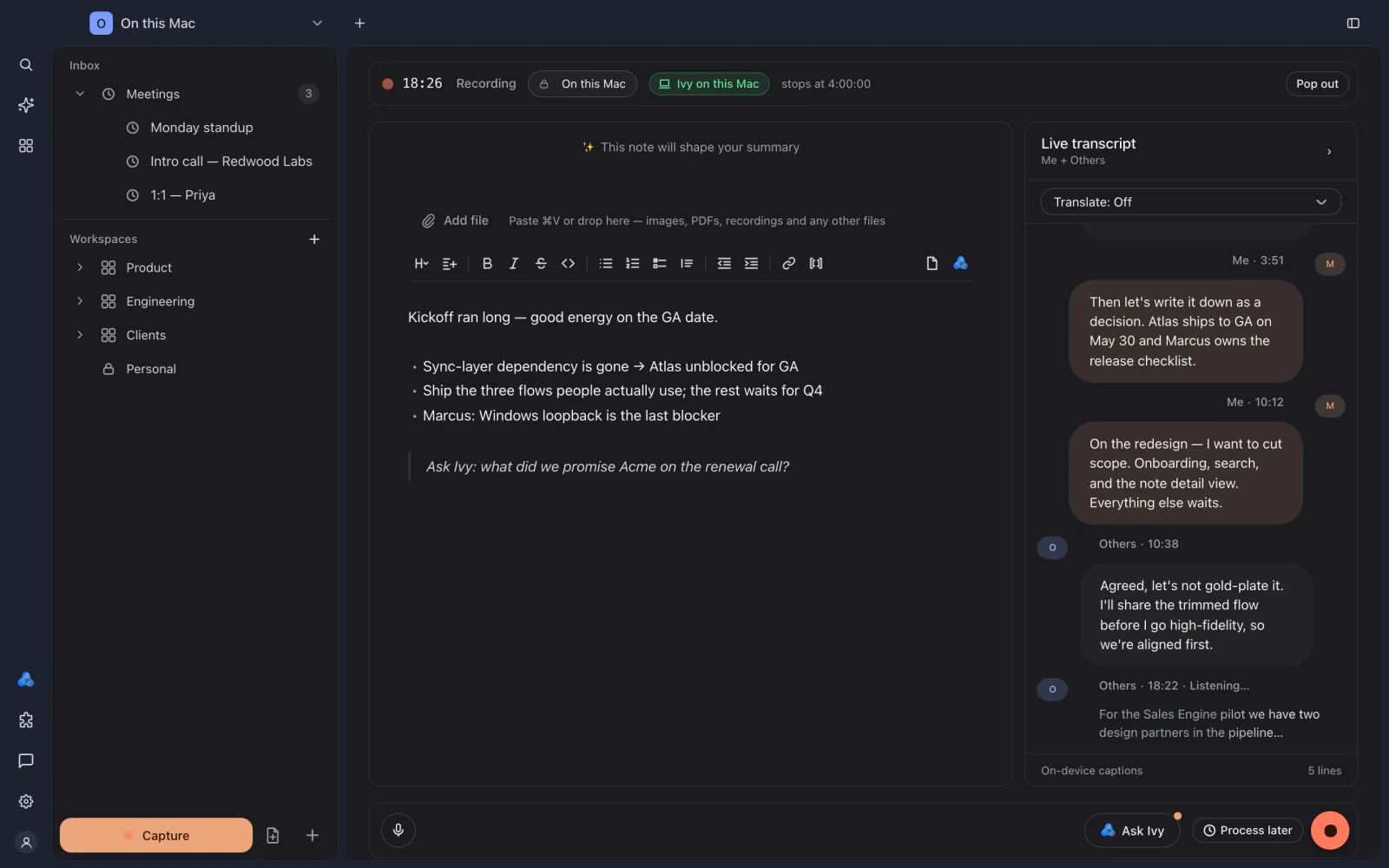
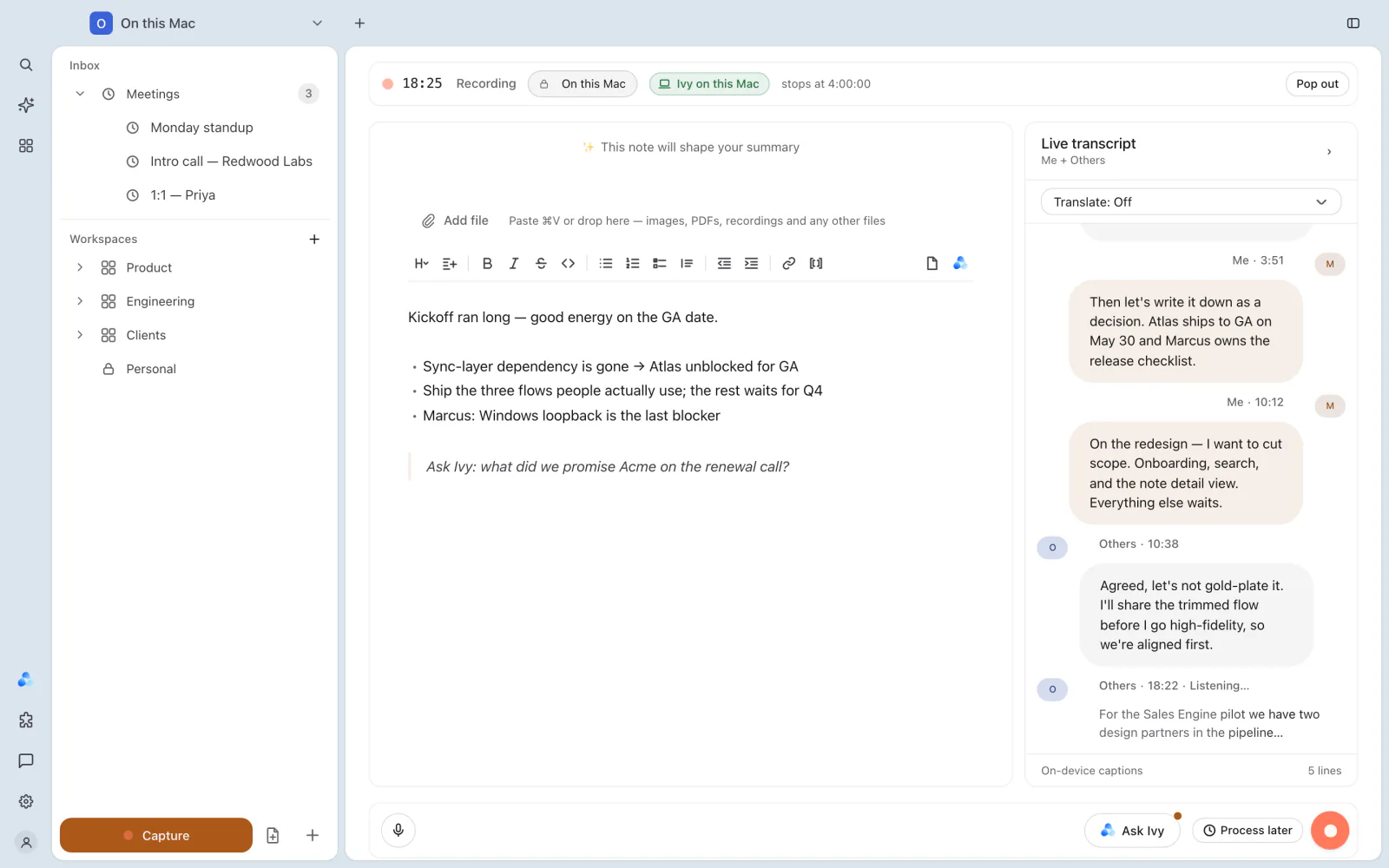
While you record, the top bar shows the time, where it saves, the processing badge and the time left. Write your own notes in the editor; Ivy uses them to shape the summary. Live captions appear in the transcript panel, split into Me (your microphone) and Others (system audio). At the bottom you can mute your microphone and Ask Ivy about the meeting so far. See Recording for everything on this screen.
The floating bar
Choose Pop out, or press ⌘⇧R from any app, to open the small floating recording bar. It shows where the recording is saved, the processing badge and the time left, and has the same stop buttons as the Record screen. IndexOne also has an icon in the menu bar.
Stop: now or later
There are two ways to stop:
- The stop button creates the note now: the transcript is finished and Ivy writes a structured note.
- Process later (on the bar, Later) stops the recording and saves it to the queue on this Mac. Use it when you need your Mac for something else.
Recordings you process later wait in Browse › Processing queue. Process now handles the ones you select, Process all handles everything, and a recording that couldn't be processed says why and offers Retry or Remove.
Where the note appears
When you stop, IndexOne shows Recording complete with the meeting's location. A new recording in On this Mac starts unfiled, so it appears in the sidebar under Inbox › Meetings and in Browse › Meetings. Choose Open saved meeting to read it, or Move recording to file it in a folder. A recording saved to Personal or an organization appears in the space you chose. See Workspaces and folders.
From the meeting you can read the note and the transcript, ask Ivy about it, or copy and save it as Markdown or a PDF. See Notes.
Shortcuts
| Shortcut | What it does |
|---|---|
⌘R | Start or stop recording |
⌘⇧R | Open the floating recording bar, from any app |
More in Keyboard shortcuts.
Something missing or out of date? Tell us in GitHub Discussions, or send a report from IndexOne with Send feedback.