Workspaces and folders
On this Mac keeps everything you record and write in one tree of workspaces and folders. This page explains the sidebar, how items get filed, the Trash, and locking a workspace.
Checked against IndexOne 3.19.0, released November 14, 2026.
The space switcher
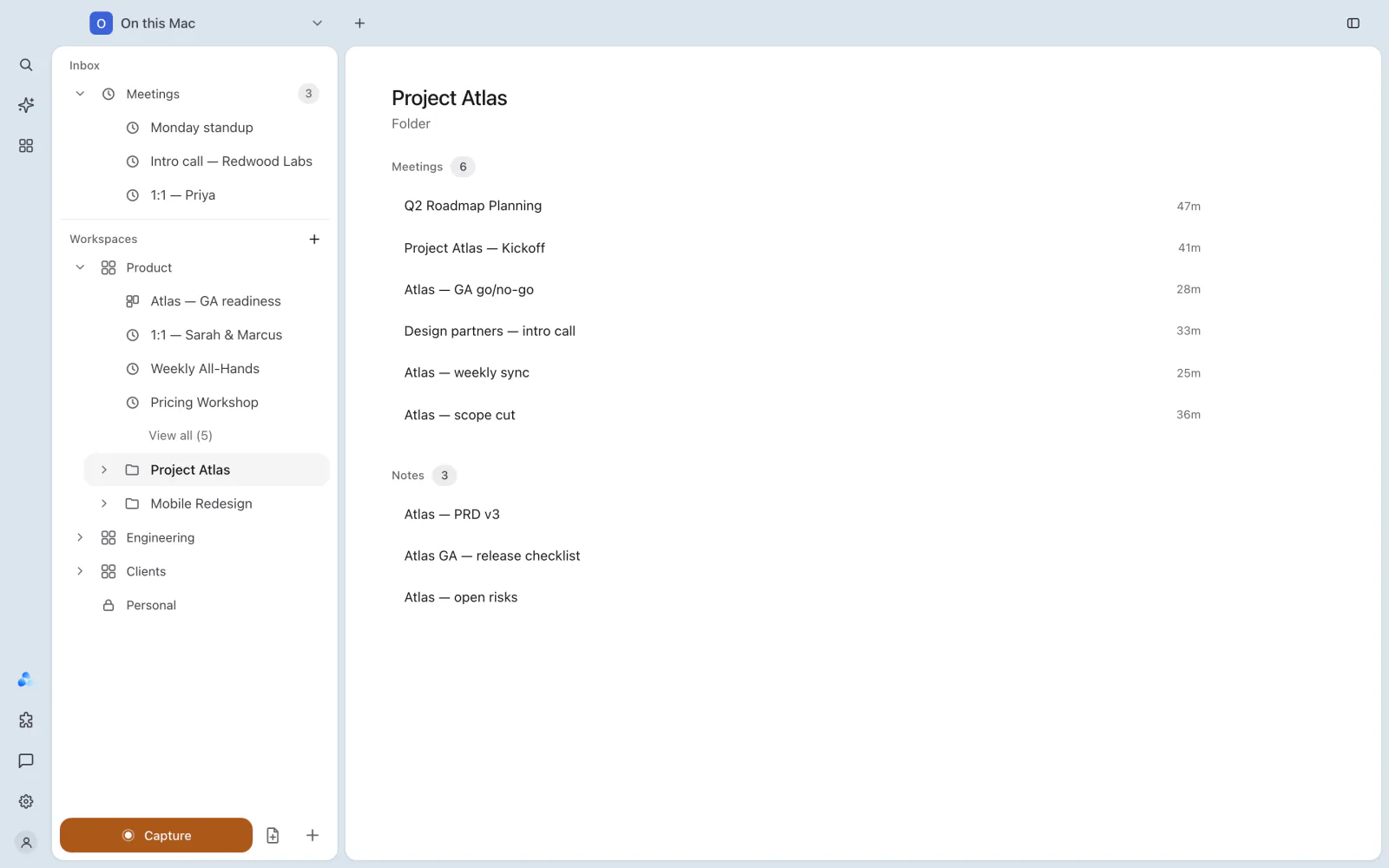
The menu above the sidebar shows where you are working: On this Mac, Personal or one of your organizations. Click it to open the panel. It shows the current place with a short line about where its notes live, the other places you can switch to, and, when you are signed in, New organization and Join organization. Signed out, it offers Sign in to open your workspaces.
This page is about On this Mac. Personal and organizations have their own spaces and folders: see Organizations and Personal.
The sidebar
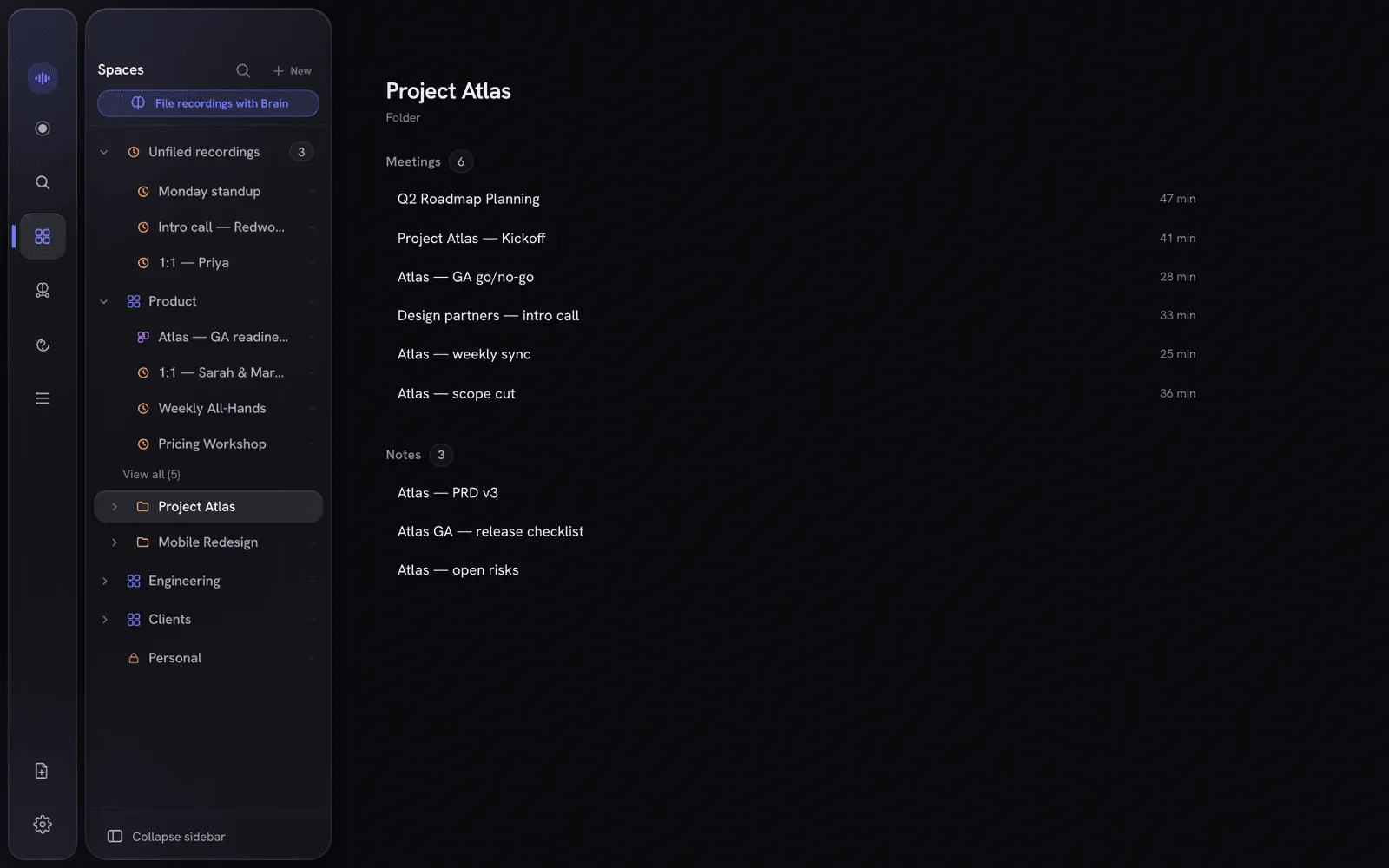
- Inbox holds what you have not filed yet, such as a new recording. Drag an item onto the Inbox to unfile it.
- Workspaces is your tree. A workspace holds folders, and folders can hold folders. A folder holds your recordings, notes, tasks and projects side by side, so a meeting's note sits next to the work it belongs to. Use + next to Workspaces to create a workspace or a folder.
- At the bottom: Capture opens the Record screen, the note button creates a Quick note, and + creates a new note, project or reminder. When some protected items are unlocked, the footer shows how many, with Lock all.
The slim rail on the far left has Search (⌘K), Smart organize and Browse at the top, and Ask Ivy, Plugins, Send feedback, Settings and your account at the bottom. When you collapse the sidebar, Capture and Quick note move to the rail.
The Browse menu
Browse lists everything by kind, across all folders:
| Group | Items |
|---|---|
| Work | Meetings, Processing queue, Notes, Tasks, Projects, Reminders |
| Intelligence | Ivy |
| Insights | Analytics, Graph, People |
| Storage | Trash |
Filing
Drag an item where it belongs, or use Move… in its menu.
Smart organize (in the rail) reorganizes the whole library from an instruction in your own words. It plans the change, creating, renaming and moving folders, workspaces and projects, and shows every step in a preview. Only what you accept is applied, and Undo reorganization puts it back. A plan never deletes a project. If your AI for On this Mac is Claude Code or Codex, Smart organize asks once for permission to send titles, labels and folder names to it.
After you apply a plan, its folders become rules for new items. Automatic filing in Settings › Notes files new notes and recordings that have no folder yet:
- Filing: Off, Trial (shows what it would have filed, without moving anything) or On.
- When the rules can't place an item: Rules only leaves the item where it is, and nothing is sent anywhere. Rules, then ask the model asks your AI where the item belongs.
Anything you put in a folder yourself is never moved.
The Trash
Deleted items go to Browse › Trash first. Restore puts one back, Delete for good removes it, and Empty Trash removes everything. Items are kept for 30 days by default; you can choose 7, 14, 30, 60 or 90 days. Items from a locked folder can only be seen or restored after you unlock it.
Locking a workspace
Choose Protect… on a workspace, folder, note or meeting to lock it with Touch ID or your Mac password. Everything inside is encrypted and hidden from search, Ivy and connected apps until you unlock it. A locked workspace shows only its name in the sidebar, because you need the name to unlock it: no counts and no items. Locked folders always stay on this Mac.
Unlocked items lock again after a period of inactivity, or all at once with Lock all. See What a lock protects and App lock.
Old shared notes
If you used the end-to-end encrypted sharing of earlier versions, everything that was shared with you, and every old encrypted organization on this Mac, is in On this Mac › Shared. See Organizations and Personal.
Something missing or out of date? Tell us in GitHub Discussions, or send a report from IndexOne with Send feedback.