Imports and export
Settings › Imports brings notes in from other apps and moves folders between your Mac and IndexOne on the web. A meeting can also leave the app as Markdown or a PDF.
Checked against IndexOne 3.19.0, released November 14, 2026.
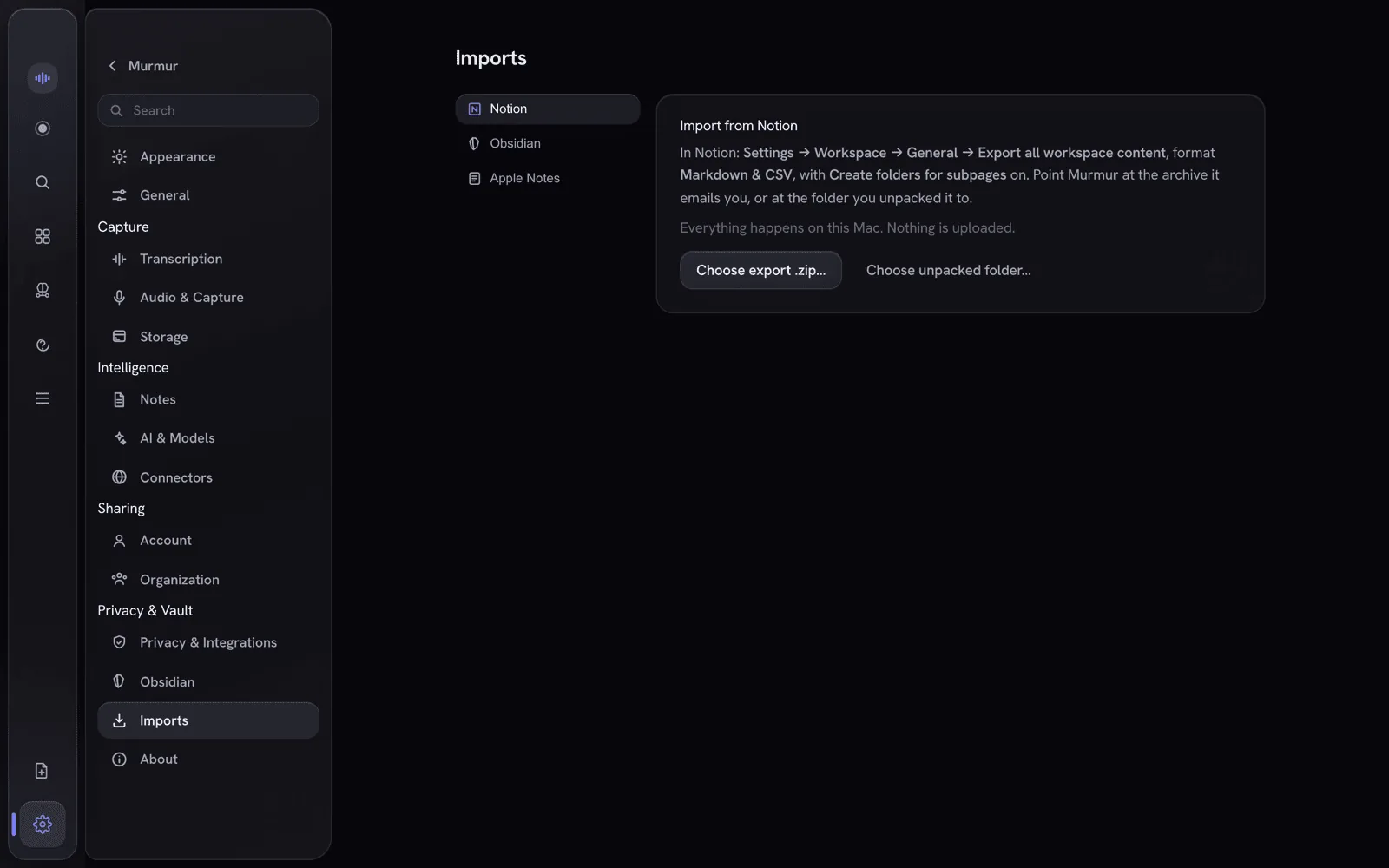
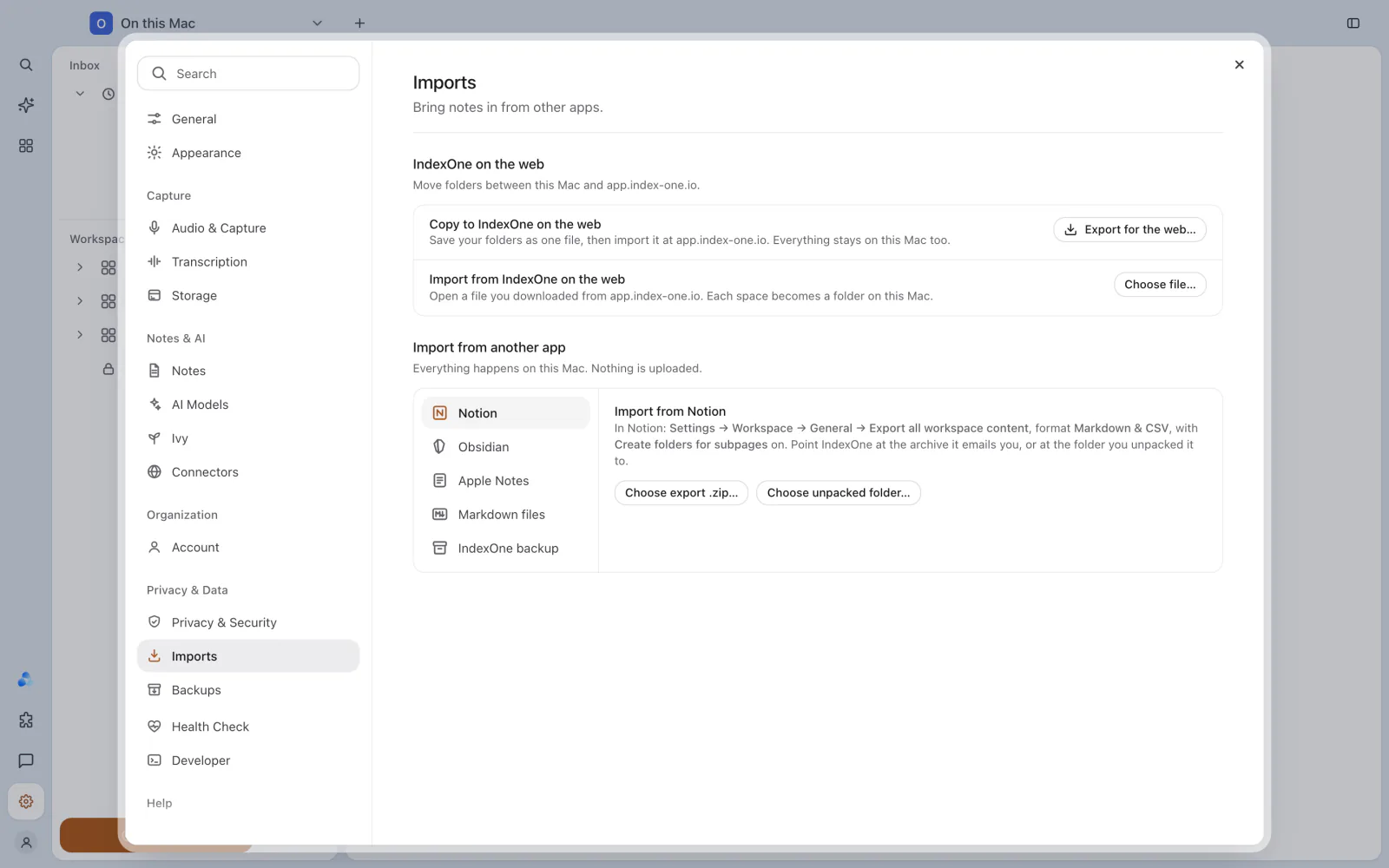
Import from another app
Every import from another app runs on your Mac. Nothing is uploaded. Choose a source on the left:
| Source | What to do |
|---|---|
| Notion | In Notion, use Settings › Workspace › General › Export all workspace content, format Markdown & CSV, with Create folders for subpages on. Then choose Choose export .zip… for the archive Notion emails you, or Choose unpacked folder…. |
| Obsidian | Choose the vault folder. [[wikilinks]] and front matter are already the format IndexOne uses, so nothing is rewritten. The .obsidian settings and .trash are skipped. |
| Apple Notes | Choose Read my Notes. Notes has no export, so IndexOne asks the app directly; macOS asks your permission the first time. |
| Markdown files | Choose any folder of .md files. Every .md file inside, subfolders included, becomes a note. PNG and WebP images the notes link to come along. |
| IndexOne backup | Restores a backup made in Settings › Backups. See below. |
Check before you import
Every import is planned before anything is written. What this will do shows how many new notes it will create, how many are already here — will update, and the attachments it brings. Choose where the notes go under Import into, and turn on Mirror the source tree to keep the original folder nesting. Then choose Import (for a backup, Restore).
Running an import again doesn't duplicate anything: notes already imported are updated. If you stop an import, what was imported so far is kept, and running it again picks up the rest. IndexOne doesn't write into a locked folder; unlock it first.
Imported notes are ordinary notes: filed in a folder, searchable, linkable and part of what Ivy can read.
Restore an IndexOne backup
Choose the index-one.backup folder (the newest backup inside is used) or one dated folder in it.
- A backup made with Restorable in IndexOne turned on rebuilds your spaces, projects, folders, notes and meetings exactly as they were. Folders that already exist with the same name are reused, so nothing is duplicated.
- Any other backup brings the notes back into a new Restored from backup folder, with meeting notes and transcripts in a Meetings folder and images re-attached, so nothing you already have is overwritten.
This is also how you move On this Mac to a new Mac; see Install and update and Backups.
IndexOne on the web
The IndexOne on the web section moves folders between your Mac and app.index-one.io.
Copy to IndexOne on the web
- Choose Export for the web… and pick the folders to copy.
- Choose Save file…. IndexOne saves them as one
.indexone.tarfile. Everything also stays on your Mac. - On app.index-one.io, open Settings › Imports, choose Import from IndexOne desktop and pick the file.
The file holds your notes, with their history, and your meetings with their transcript and AI note. Audio and screen recordings stay on your Mac, and tasks, projects and Ivy's memory are not included.
Import from IndexOne on the web
- Download an export from app.index-one.io.
- In Settings › Imports, choose Choose file… under Import from IndexOne on the web and open it.
- IndexOne checks the whole file and shows what each space holds and how much of it you already have. For each space, pick a new folder or an existing one.
- Each space becomes a folder on your Mac. Items you already imported are skipped.
The import brings notes, meetings with their transcript and AI note, and uploaded documents. Audio comes along when the web still has it. IndexOne refuses a damaged or altered file before it writes anything, and a locked folder can't receive an import.
Export a meeting or your notes
A meeting can leave IndexOne on its own. In the meeting's More menu:
- Copy Markdown copies the note to the clipboard.
- Save Markdown… saves it as a
.mdfile. - Save as PDF saves it as a PDF.
To export your notes all at once, make a backup: it writes notes, meeting notes and transcripts as plain .md files in a folder you choose. See Backups.
Something missing or out of date? Tell us in GitHub Discussions, or send a report from IndexOne with Send feedback.