Recording and transcription
IndexOne records your microphone and the other side of the call, turns both into one transcript on your Mac, and then has Ivy write the note. This page covers what happens while you record, which settings shape it, and what to do when a recording does not turn into a note.
Checked against IndexOne 3.19.0, released November 14, 2026.
Two streams, one transcript
IndexOne records two sources separately:
- Me: your microphone. Choose which one in Settings › Audio & Capture › Microphone. "System default" follows your macOS input; a chosen device falls back to the default if it is unplugged.
- Others: the sound of the call on your Mac, from Zoom, Meet, Teams or any other app. Turn it on or off with Capture system audio in Settings › Audio & Capture. The first time, macOS asks you to allow IndexOne under Screen & System Audio Recording.
Each stream is transcribed on its own and the two are merged by time into one Me / Others transcript.
Starting and stopping
Start a recording from the Record screen, the floating recording bar or the IndexOne icon in the menu bar. The bar can be popped out of the main window, so it stays on top of your call.
Before you start, the Saves to row on the Record screen shows where the recording goes (On this Mac, Personal or a space in an organization), a badge for where the transcript and note are made, and how long you can record. The first time you record, IndexOne reminds you to tell everyone in the meeting that it is being recorded. See Organizations for recording into a space.
When you stop, you choose:
- Stop and create the note now: IndexOne finishes the transcript and Ivy writes the note.
- Process later: the recording waits on this Mac in the Processing queue (Browse › Processing queue). Use Process now for one recording or Process all for everything. Nothing is written or sent until you process it.
You can keep working while a long recording is transcribed.
Hands-free start
With Voice trigger on (Settings › Audio & Capture), say "start recording" and IndexOne starts. It listens with your Whisper model while idle, on your Mac.
Transcription on your Mac
Transcription always runs on your Mac with Whisper. In Settings › Transcription:
- Language: Auto-detect, or force one language. Forcing helps when you mostly speak one language, because auto-detect can misfire on short clips.
- Model: IndexOne recommends a size for your Mac and downloads it once. Show every size lists the others. Larger models are more accurate and slower.
- Custom model file: point IndexOne at your own Whisper model file instead.
Optional extras in Settings › Audio & Capture:
- Smart speech detection skips silence for cleaner, faster transcripts. Recommended.
- Keep high-fidelity masters keeps a separate full-quality file for your mic and for system audio. It roughly doubles the disk space a meeting uses. Export them from the meeting's More menu with Export master (mic)… and Export master (system)….
- Split "Others" into individual speakers labels people on the other side as Speaker 1, 2, 3. It is experimental, needs system audio and downloads about 40 MB of models the first time.
- Recognise speakers across meetings recognizes the same speaker in later meetings, on your Mac. It is experimental and opt-in, and stores a voice fingerprint of remote participants. Forget removes one, Forget all removes every one.
Live captions
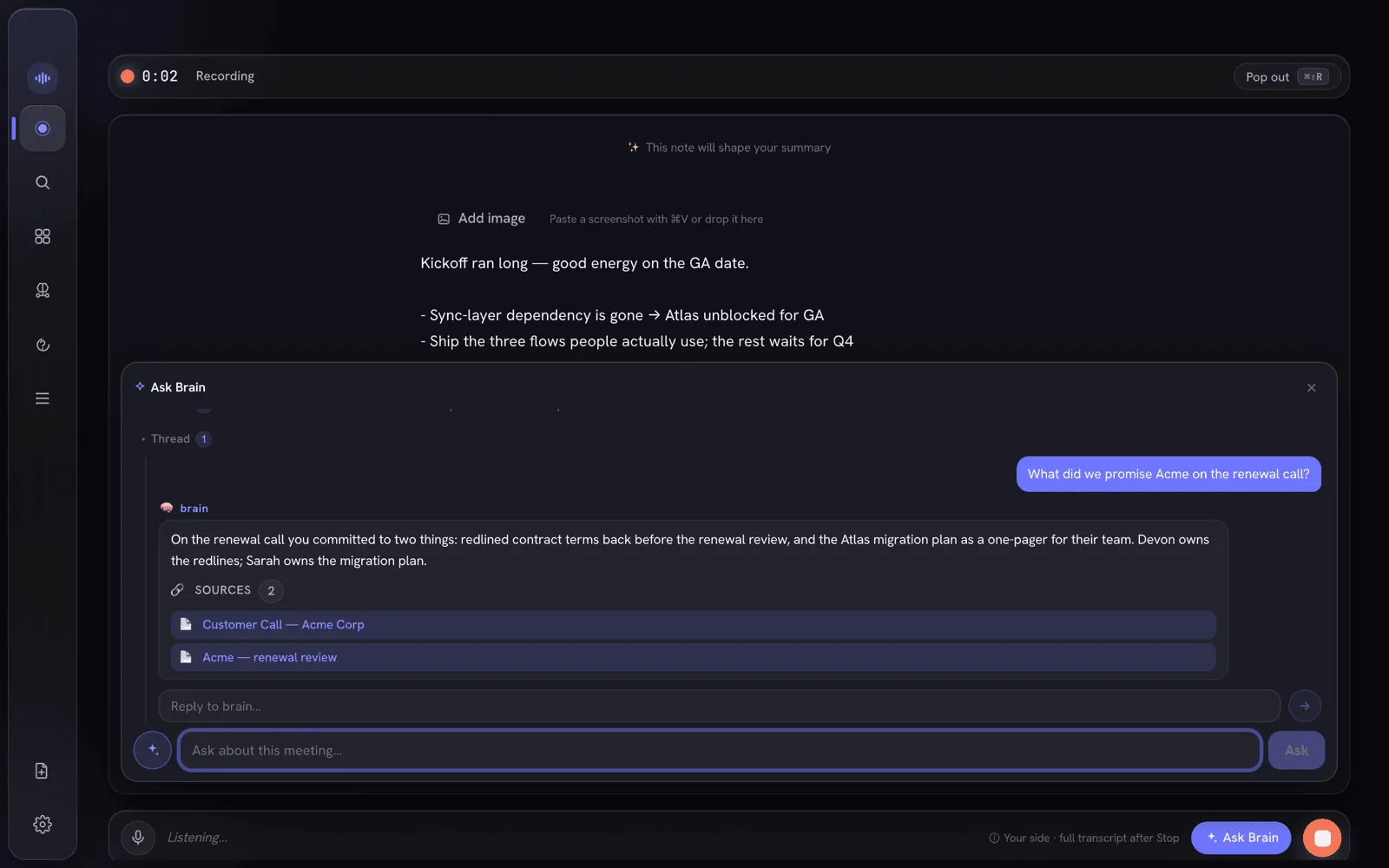
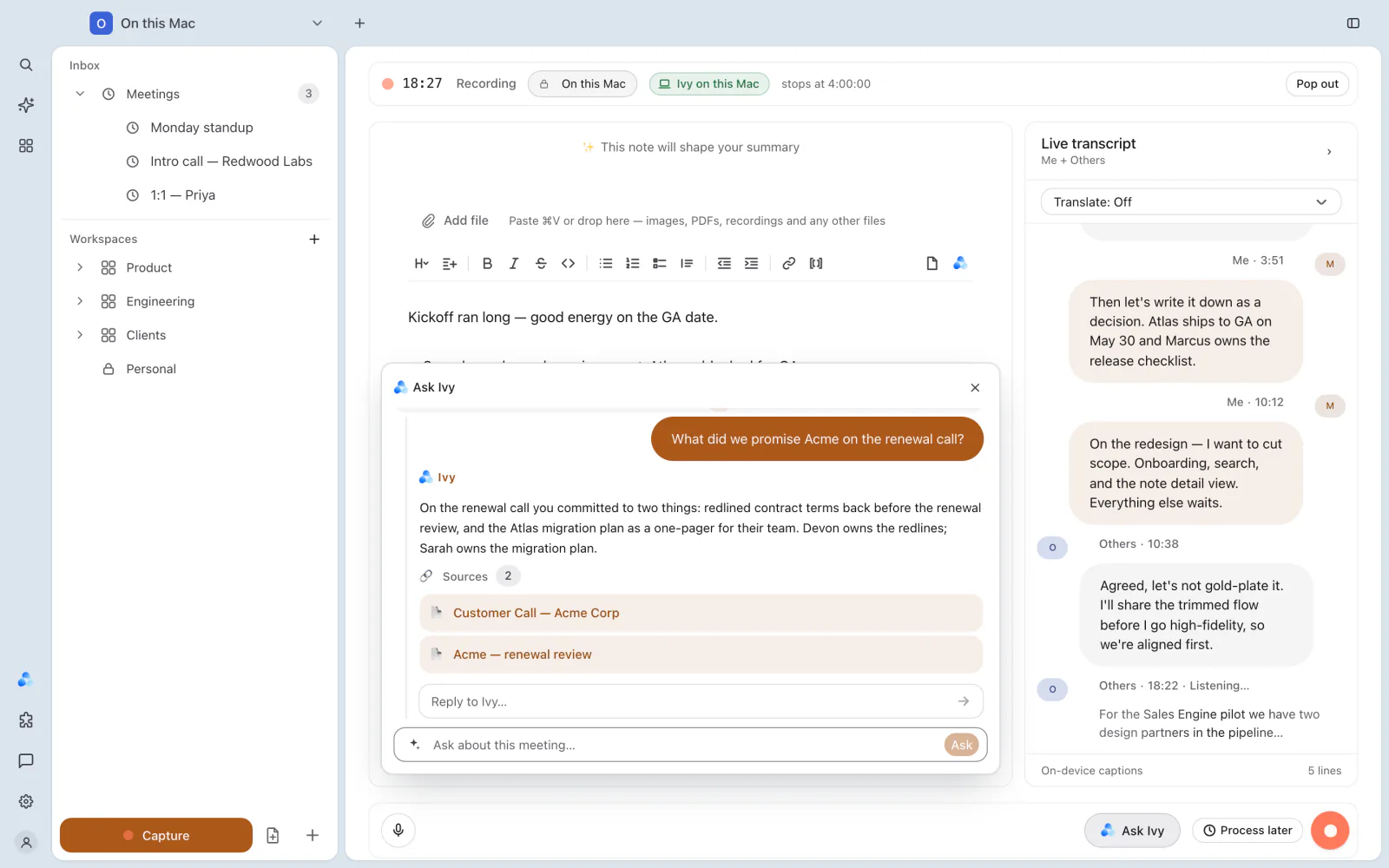
While you record, the Live transcript panel shows captions as people talk. They come from a small on-device caption model that IndexOne downloads together with your transcription model; IndexOne never runs a large model live, to keep your Mac cool. The panel's status shows whose voice it can follow, for example Me + Others or Me only.
Captions are only a preview. The saved transcript is made from the full recording after you stop. If captions stop, pause to let your Mac cool down, or are hidden because a folder is locked, the recording itself continues. Restart captions tries again.
The panel can also translate captions as they come in. Choose a language in the Translate menu at the top of the panel. See Languages and translation.
Ivy can answer questions during the meeting. See Meet Ivy.
When capture goes wrong
IndexOne tells you on screen instead of carrying on quietly:
- If system audio stops unexpectedly, IndexOne says so and keeps your microphone recording, so you know the other side may be missing.
- If a device or storage problem stops the audio, IndexOne keeps what was recorded and writes the note from it.
- A recording with no speech says "Nothing to send — no speech was recorded" and stays on this Mac.
A recording that did not become a note
Your audio is not deleted when something fails. It is removed only after a note has been made.
- Transcribe again: the transcription did not finish, but the recording is still on disk. Run it again to get the transcript and the note.
- Recover recording: the meeting ended in an error but still has its audio. IndexOne transcribes it and writes the note. If it fails again, it shows the reason, and Copy error copies it for a report.
- Generate note again: the transcript is ready but the note failed. This writes the note from the saved transcript without transcribing the recording again.
Settings › Storage › Recordings to recover lists kept recordings that have no meeting. Recover turns one into a meeting with a transcript and note. Export as WAV saves a copy to your Downloads folder and never changes the original. The list appears only when there is something to recover.
Related pages
- Your first recording
- The Screen recording plugin
- Storage: limits on how much space recordings use.
- Shortcuts
Something missing or out of date? Tell us in GitHub Discussions, or send a report from IndexOne with Send feedback.