Notes and the editor
Every meeting gets a note, and you can write your own notes too. Both use the same Markdown editor, live in the same folders and are read by Ivy the same way. This page covers writing and editing; how Ivy writes the meeting note is in Recording and transcription.
Checked against IndexOne 3.19.0, released November 14, 2026.
Meeting notes
When a recording is processed, Ivy writes a structured note from the transcript: a summary, decisions, action items and notable quotes. A meeting's note sits next to its transcript and, where there is one, its recording.
- Typing during the meeting. Anything you type in the note while you record shapes the summary. In Settings › Notes › Your typed notes, Enhance (recommended) uses your notes as the outline and fills them in from the transcript; Append keeps them word for word at the end.
- Templates. Settings › Notes sets the default structure, and you can add your own templates. For one meeting, choose Choose note template in its More menu.
- Rewriting. Re-summarize in the More menu writes the note again from the transcript.
- Unsupported claims. With Flag potentially unsupported claims on in Settings › Notes, IndexOne checks the note against the transcript after writing it and marks lines that may need a second look. It runs on your Mac. A marker is a prompt to check, not proof either way.
- Convert to note. Convert to note in the More menu turns a meeting into a linked standalone note.
Standalone notes
Create a note with New note (⌘T), Quick note in the sidebar, or from a folder. Browse › Notes lists them, with All notes showing everything you can open in the current place. A note you write becomes part of what Ivy can read, right next to your recordings.
Files in notes
A note can hold any file: images, PDFs, recordings, documents. Use Add file, paste with ⌘V or drop a file on the note. Images and file links sit inline, with previews for images, PDFs, audio, video and text. A note holds up to 100 files of up to 2 GB each.
Writing
The editor writes Markdown and shows it formatted as you type.
- Blocks. Type
/for blocks: headings, lists, checklists, quotes, code blocks, tables, dividers, callouts, images and Link to note. - Pasting. Rich text you paste, including tables and images, is turned into Markdown.
- Tab indents list items and moves between table cells.
- Write / Preview. Switch between editing and a read-only preview.
- Links.
[[wikilinks]]link notes, meetings and people. Web links open in your browser; the IndexOne window stays on IndexOne. - Lock. Lock in a note's More menu makes it read-only ("Locked — read-only") until you turn it off. This is separate from locking a folder; see App lock.
- Front matter. Any YAML front matter a note already has is kept as it is.
The formatting bar
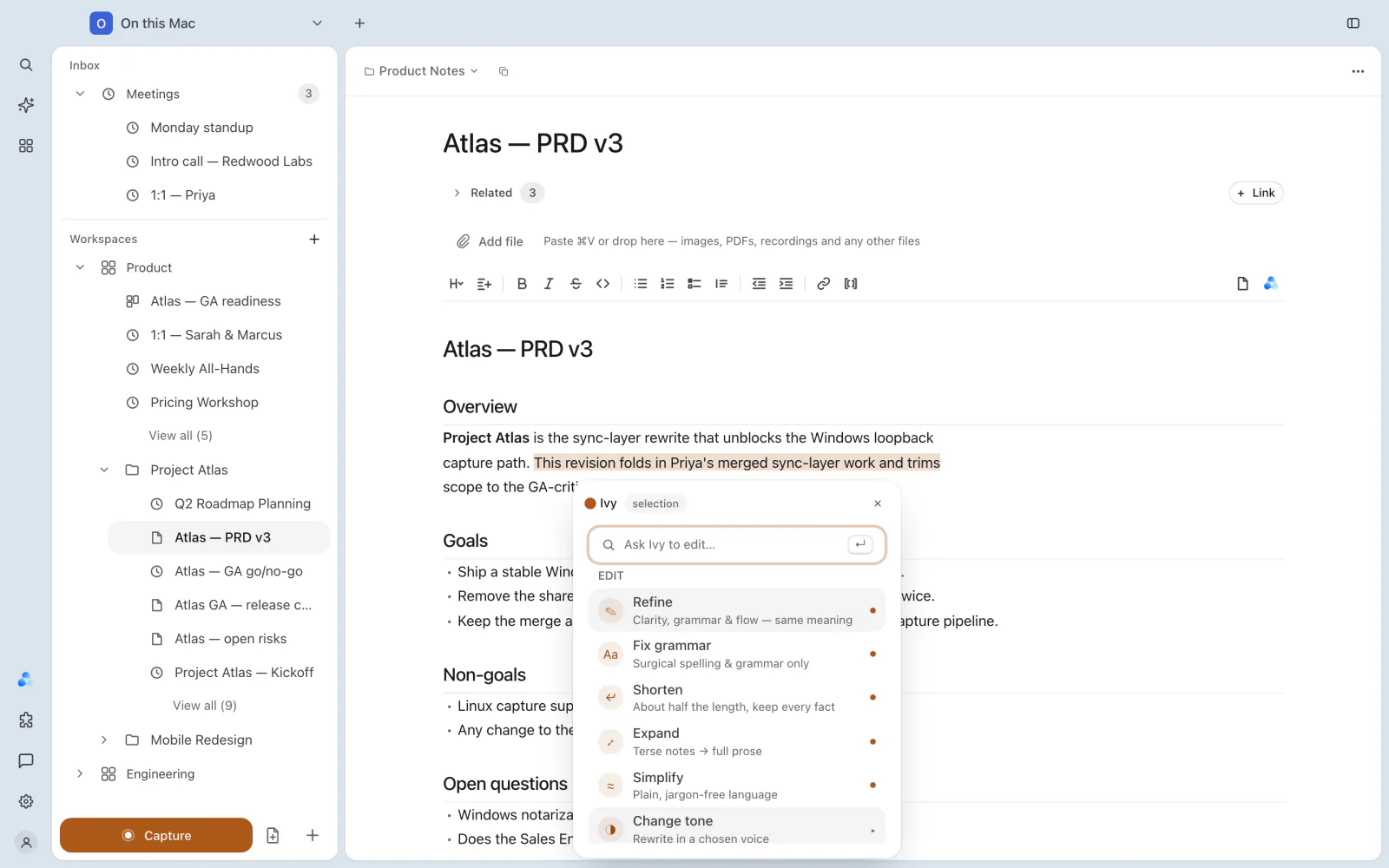
The formatting bar has a Headings menu (Heading 1 to Heading 6), bold, italic, strikethrough, inline code, link and wikilink, bulleted, numbered and task lists, quote, code block, increase and decrease indent, and a new-section template. Ask Ivy is at its far right.
Choose where it sits in Settings › Appearance › Formatting toolbar:
- Top bar: always pinned above the note.
- Dock: a floating bar at the bottom of the window.
The Ivy command menu
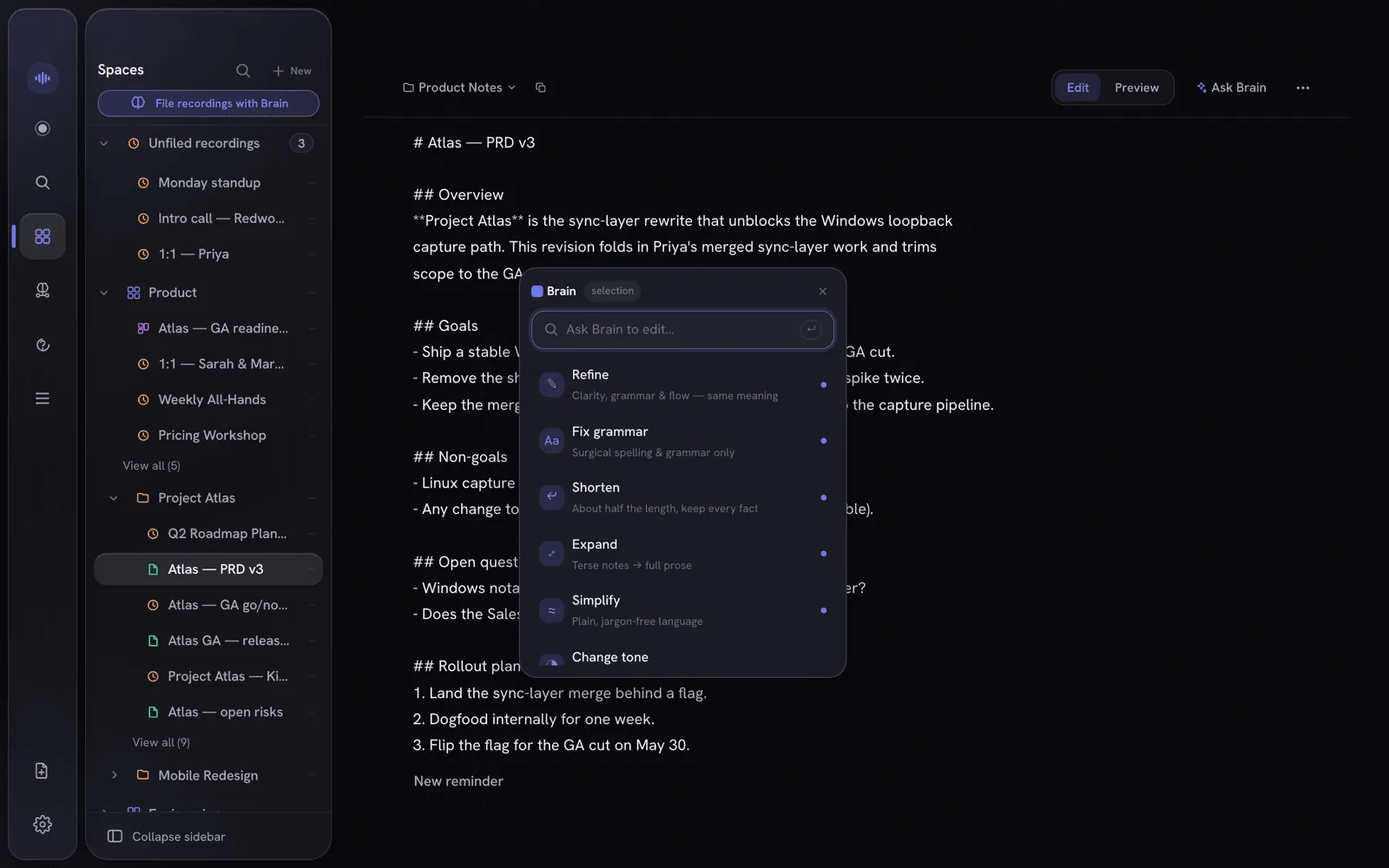
Select text in any note and an Ask Ivy button appears beside it. Click it, or press ⌘J. The menu has nineteen actions in five groups:
| Group | Actions |
|---|---|
| Edit | Refine, Fix grammar, Shorten, Expand, Simplify, Change tone, Translate |
| Structure | Bullet points, Table, Key points |
| From your Ivy | Enhance context, Find related, Link entities, Fact-check, Ask about this |
| Extract | Action items, Decisions |
| Create | Draft follow-up, Spin-off note |
Or type what you want into Ask Ivy to edit… and press Return to run it as your own instruction. Ivy shows the result first; Accept, Insert or Discard it. The "From your Ivy" actions use your own meetings and notes, the same way Ask Ivy does.
Actions run on the AI chosen for the workspace in Settings › AI Models. When that AI is in the cloud, sensitive details are removed before the text leaves your Mac. To hide actions you don't use, open Settings › Ivy › Note assistant and turn single actions or whole groups off; they stay available from the command box. More on each action in What Ivy can do.
Tags
Add tags to a meeting with + Add tag. The Meetings list can be filtered by tag, and the notes list shows a Tags column. Tags you add are kept apart from the tags IndexOne suggests. They are included in backups and in the local MCP server. Tags of meetings in a locked folder stay hidden until you unlock it.
Notes in an organization
In an organization space, notes come from your IndexOne account and open the same way. If you only have view access, the editor says so. If someone else changed a note while you were editing, IndexOne keeps your text and lets you choose Load the organization's version or Keep my version. A note written offline is saved on your Mac and sent when you are back online. See Organizations.
Taking notes with you
A meeting's More menu has Copy Markdown, Save Markdown… and Save as PDF. See Imports and export.
Something missing or out of date? Tell us in GitHub Discussions, or send a report from IndexOne with Send feedback.