Meet Ivy
Ivy is the AI assistant in IndexOne. It writes your meeting notes, answers questions about everything you have recorded and written, and works inside the note editor. Every answer is grounded in your own meetings and notes and shows where it came from.
Checked against IndexOne 3.19.0, released November 14, 2026.
Which AI runs Ivy
Each place (On this Mac, Personal or an organization) has one AI setting in Settings › AI Models, used for notes, Ask, translation and everything else Ivy does there:
- Ivy on this Mac: a model that runs on your Mac. Nothing leaves it. This is the default.
- Ivy on the web: for Personal and organizations, Ivy runs on the IndexOne server.
- Claude Code or Codex: your own cloud AI tool. Text is redacted on your Mac before it goes out.
- Local AI server: a model you run yourself, for example in Ollama or LM Studio.
Settings › AI Models shows exactly which model writes notes and answers, for example "Notes and answers: Qwen3 4B Instruct 2507 · Q4_K_M · 32K context": the model, its quantization and how much text it can read at once. If Ivy on this Mac isn't downloaded yet, or your Mac doesn't have enough memory for it, IndexOne says so and offers another choice. See AI models and Local AI server.
Ask Ivy
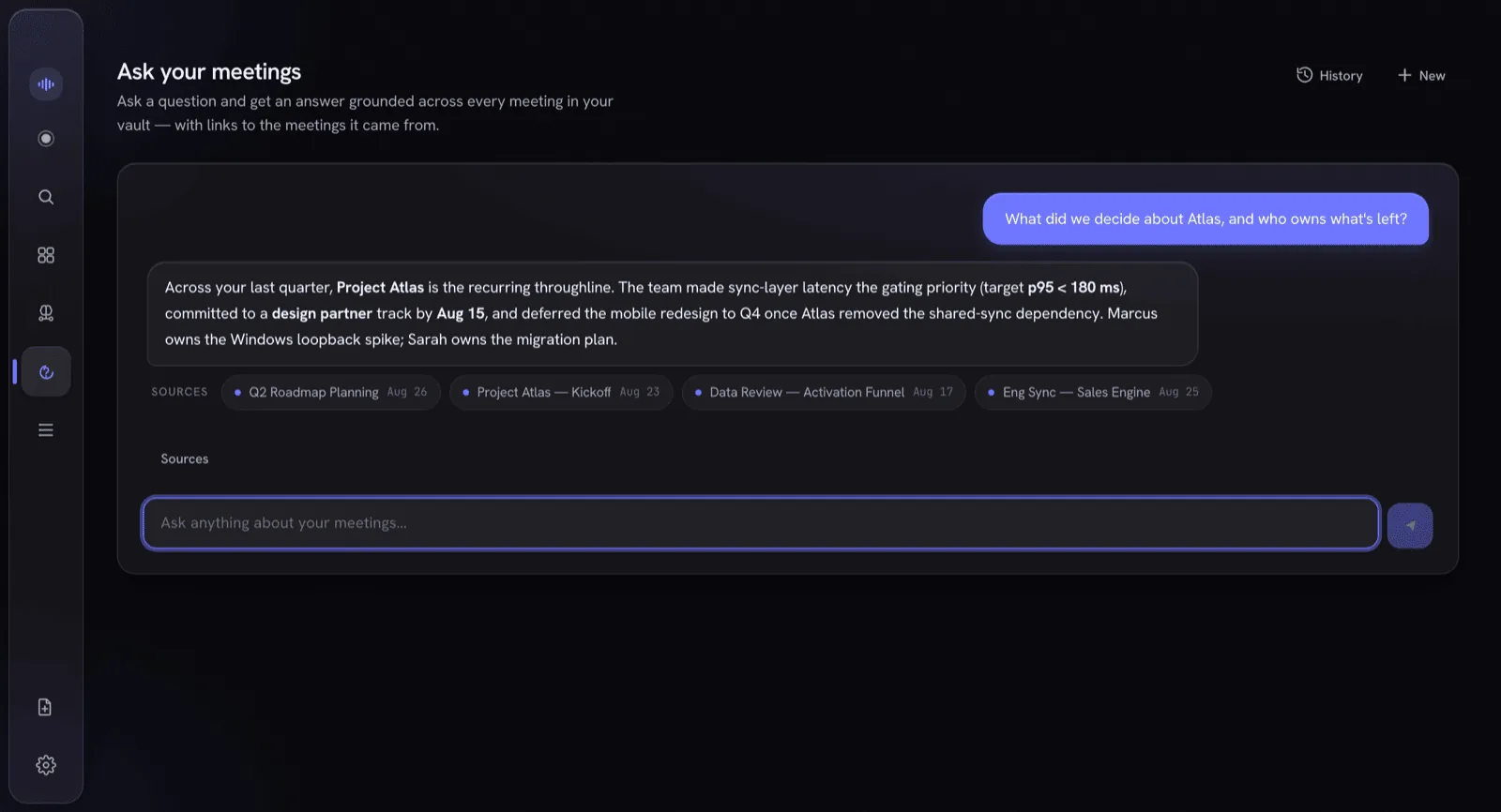
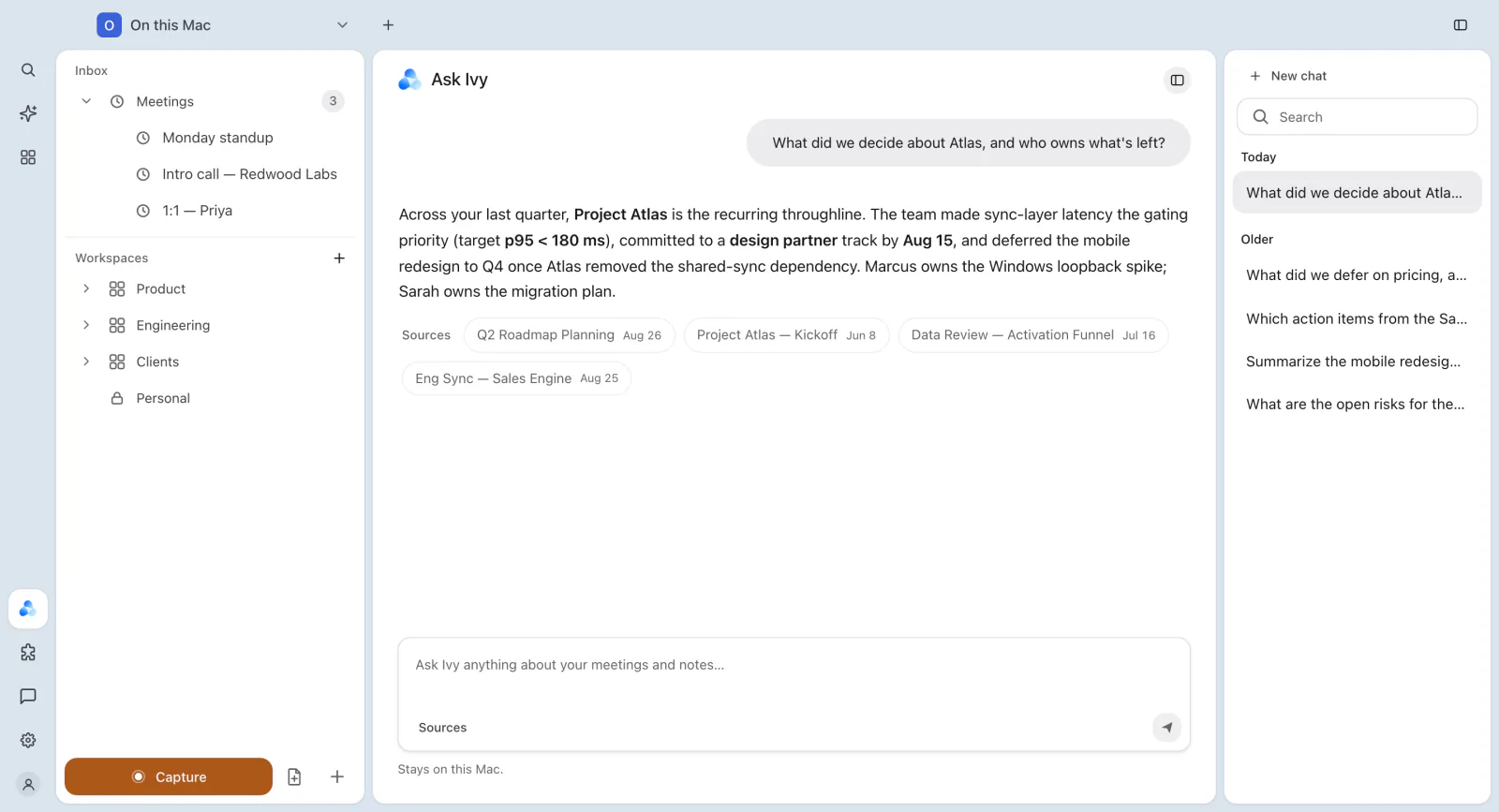
Ask Ivy in the left rail opens a full-page chat over your whole library. Ask about decisions, owners, follow-ups or anything else in your meetings and notes.
- Sources. Under each answer, Sources lists the meetings and notes it used, with their dates. Click one to open it.
- History. Your conversations are listed beside the chat, newest first, with New chat and a search field. Drag the edge of the history to resize it; the width is remembered on this Mac.
- Scope. Use Sources in the question field (Scope to a note or meeting…) to pin a note or meeting, so Ivy answers from just that.
- Spaces. Where you can open several spaces, choose All workspaces or one space. When Ivy reads Personal or organization content, each answer says which space it comes from.
Ask reads only what you can open. Content in a locked folder stays out of answers until you unlock it.
When a pinned note is empty
If every note you pinned is empty, Ivy searches your other notes the way a normal question would, with the same locked folders and folder choice. If nothing matches, it says the pinned note is empty. If you ask from a shared note that is empty or no longer available to you, Ivy says so instead of answering from your own notes.
Asking about one meeting or note
A meeting has its own Ask Ivy button. It answers about that meeting and everything related, with sources, and suggests questions such as "What did we decide?" or "Draft a follow-up message". Add to note puts an answer straight into the meeting's note. A note has Ask about this note in the same way.
Asking in an organization
In Personal and organizations, Ask searches the spaces you can open, and conversations are saved so you can come back to them. With Ivy on the web, Ivy runs in the cloud and asks for your cloud processing permission first. While IndexOne is still getting an organization ready on this Mac, Ask says so and shows its progress. See Organizations.
Ivy while you record
Ivy keeps working during a recording:
- Ask during the meeting. The Ask Ivy button on the Record screen asks about the meeting so far and everything related. An answer can be added to your note.
- Two at a time. To keep the transcript up to date, Ivy handles at most two requests during a recording. If you ask a third, it asks you to try again in a moment.
- Paused work. Some on-device work, such as name masking, pauses while you record so transcription stays fast. If a question to a cloud AI would need it, Ivy stops before sending anything and offers Send without name masking for that one question, or Ask after the recording. Nothing is sent unmasked without your choice.
Settings › Ivy › Live during meetings has two more options:
- In-meeting voice assistant: Ivy listens for your wake phrase and answers grounded questions live, with sources. It is off by default and works only with Ivy on this Mac; nothing leaves your Mac.
- Proactive Ivy hints: while you record, Ivy shows a recall card you can dismiss when the conversation touches a past meeting, an open commitment or a known fact. It runs entirely on your Mac and shows at most one card every two minutes.
The live transcript also marks possible questions from the other side, so you can answer them before the moment passes.
Ivy in your notes
Select text in a note and Ask Ivy (⌘J) offers nineteen actions, from Refine to Draft follow-up. See Notes and the editor.
More about Ivy
- What Ivy can do: the meeting tools, connectors, memory, briefs and the vault audit.
- Ivy skills: shape how Ivy writes notes and answers.
- Receipts: how note claims link back to the recording.
- Redaction: what is removed before text leaves your Mac.
Something missing or out of date? Tell us in GitHub Discussions, or send a report from IndexOne with Send feedback.