What Ivy can do
Ivy works in several places: on a meeting, in the note editor, in Ask and on its own Ivy page. This page lists what it can do in each, what it can reach, and what needs your consent first. For the basics, start with Meet Ivy.
Checked against IndexOne 3.19.0, released November 14, 2026.
On a meeting
A meeting's More menu holds Ivy's meeting tools and the meeting's actions:
- Action items, Smart reminders and Live context: panels that open next to the note.
- Re-summarize: write the note again from the transcript.
- Choose note template: the default, a built-in structure, or one of your own templates from Settings › Notes.
- Convert to note: turn the meeting into a linked standalone note.
- New reminder, Edit, Rename, Move…, Protect…, and Link people & projects.
- Copy Markdown, Save Markdown…, Save as PDF, Save audio…, Save video… (with a screen recording) and Export master (mic)… / Export master (system)… (with high-fidelity masters kept).
The Ask Ivy button next to the More menu asks about this meeting. See Meet Ivy.
In the note editor
Select text and choose Ask Ivy (or press ⌘J) for nineteen actions:
| Group | Action | What it does |
|---|---|---|
| Edit | Refine | Clarity, grammar and flow, same meaning |
| Fix grammar | Spelling and grammar only | |
| Shorten | About half the length, every fact kept | |
| Expand | Terse notes into full prose | |
| Simplify | Plain, jargon-free language | |
| Change tone | Professional, Casual, Confident, Friendly or Direct | |
| Translate | Into another language | |
| Structure | Bullet points | Prose into a clean list |
| Table | Rows into a Markdown table | |
| Key points | A short digest | |
| From your Ivy | Enhance context | Adds a grounded passage from your meetings and notes |
| Find related | Notes, meetings and people that match | |
| Link entities | Turns known names into [[wikilinks]] | |
| Fact-check | Flags claims that clash with your notes | |
| Ask about this | Asks Ivy about the selection | |
| Extract | Action items | Pulls to-dos into a checklist |
| Decisions | Pulls out the decisions made | |
| Create | Draft follow-up | A ready-to-send email or message |
| Spin-off note | A new linked note from the selection |
You can also type your own instruction. Turn actions on or off in Settings › Ivy › Note assistant. See Notes and the editor.
What Ask can reach
When Ivy answers a question, it decides which of its tools to use and grounds the answer in what they return. Its tools come in three levels, and which levels a question may use is enforced by the app, not left to the model's judgment:
| Level | What Ivy can read |
|---|---|
| Current meeting | Only the meeting being recorded |
| Your library | Your meetings, notes, documents, projects, open commitments and the people and projects in your graph |
| Connectors | The connectors you have turned on, below |
The Ask page can use all three. During a recording, Ivy starts with the current meeting and reaches your library and connectors only when the question needs them.
Ivy can also prepare a note for you. A draft is only a proposal: it shows as a draft with Add to note and Dismiss, and nothing is written until you accept. Ivy writes a note or creates a reminder by itself only where that surface explicitly allows it.
Connectors
Connectors let Ivy look beyond your notes. Set them up in Settings › Connectors. They are off by default, and each one that leaves your Mac asks for an explicit, one-time consent first.
| Connector | What Ivy can search | What it needs |
|---|---|---|
| Web search | The web, through Brave Search | Your own Brave Search API key |
| Jira | Your Jira issues | Site, email and API token |
| Slack | Your Slack messages | A user token |
| Notion | Your Notion pages and databases | An integration token |
| ClickUp | Your recently updated ClickUp tasks | Workspace id and API token |
- Answers stay grounded in your notes first. Connector results are added as extra sources, labeled for example "via web" or "via Jira".
- Only the search query leaves your Mac, never your notes or transcript, and it is redacted first.
- Keys and tokens are stored in your macOS Keychain.
- Notion and ClickUp are read-only: IndexOne never creates or edits anything there.
Your macOS Calendar works differently. When you allow Calendar access, Ivy can check your calendar on your Mac, and meetings get their titles and attendees from it. Nothing about it leaves your Mac.
Settings › Connectors also connects Claude Code and Codex, and turns on the local server that lets other AI apps read your meetings. See AI models and MCP.
The Ivy page
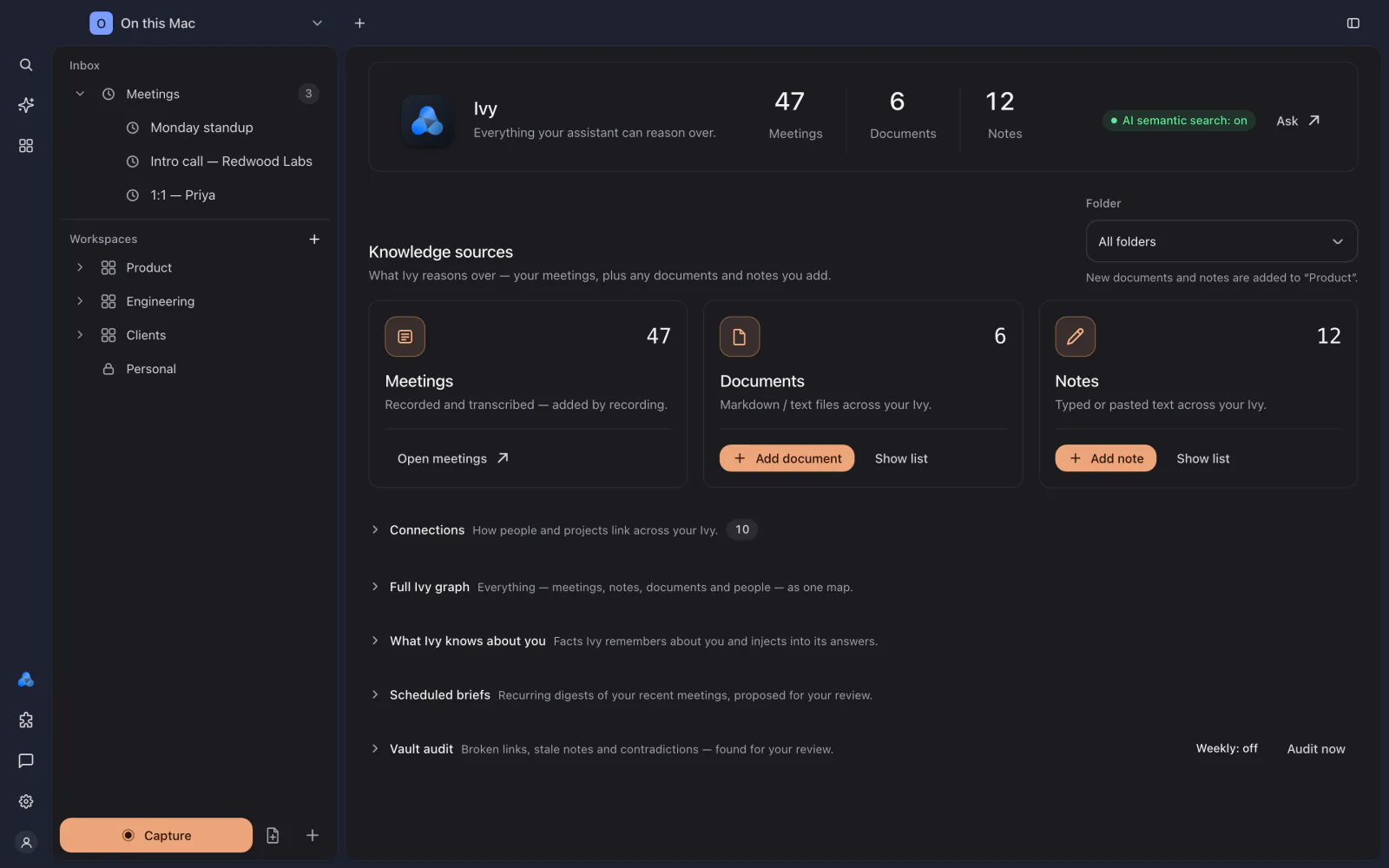
Browse › Ivy shows everything Ivy can reason over and the work it does for you.
Knowledge sources
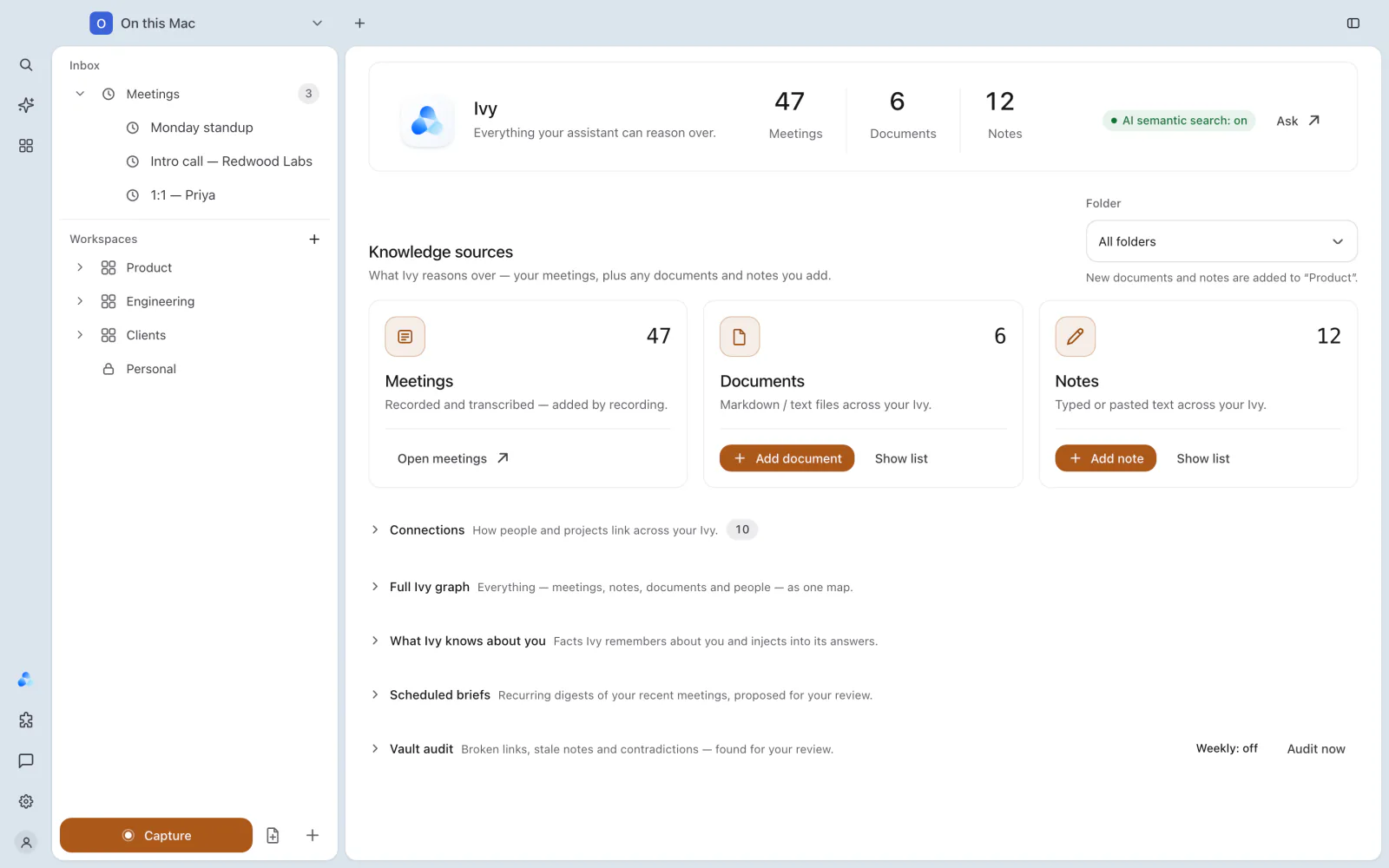
The top of the page counts the meetings, documents and notes Ivy can read, and links to Ask. Pick a folder, then use Add document (Markdown or text files) or Add note to give Ivy more to work with. Connections shows how people and projects link across your library, and Full Ivy graph draws everything as one map; see Graph, people and analytics.
What Ivy knows about you
With Cross-meeting memory on (Settings › Ivy), Ivy keeps short facts about you that it learns across meetings, such as how you like to work and what you own, so its answers come with context. Each fact is listed with where Ivy learned it and Forget; Forget all clears everything. The facts are stored on your Mac and respect locked folders. You can also import memories exported from another assistant. Turn memory off and nothing new is kept.
Scheduled briefs
A brief is a recurring digest of your recent meetings, open action items and what IndexOne knows, proposed for your review. Give it a Name, a Day (Daily or a weekday), a Time, how far to Look back (1 to 90 days) and an optional Focus, then choose Schedule brief. Each schedule can be paused, resumed or deleted.
A finished brief waits until you Save as note or Dismiss it. Briefs only read content that isn't locked.
Vault audit
Audit now checks your notes for five kinds of problems: contradictions, stale notes, broken links, unlinked mentions and orphans. Every finding waits for your review:
- Explain (AI) asks the workspace's AI why it matters. Cloud AIs see only redacted text.
- Accept applies the suggested fix. Dismiss hides the finding.
Nothing changes until you accept. To run the audit every week on your Mac, turn on Weekly vault audit in Settings › Ivy.
Something missing or out of date? Tell us in GitHub Discussions, or send a report from IndexOne with Send feedback.